You unbox a new PC, and the first thing on your mind is security ── so you go to install your antivirus software, and it tells you: please open our website in your browser to activate your license first. Wait a minute. Going online before the protection is installed… is that actually safe?
If that moment of doubt feels familiar, you’re not alone. There are a few other classic “am I exposed right now?” moments:
- On a brand-new PC, you’re asked to open the activation site before the antivirus is even installed.
=>Am I unprotected right now? - Right after a clean OS reinstall, before the security updates are applied.
=>Fine to stay on Windows Update for hours with not a single security patch installed yet? - You’ve just moved house and the router is still in a packing box.
=>Fine to plug the PC straight into the wall terminal (ONU/modem) and get online for now? - When you’re on the free Wi-Fi at a coffee shop or hotel.
=>What’s the risk of sharing a network with total strangers?
Here’s the answer up front: the first two are essentially safe today. The last two, depending on the circumstances, are genuinely risky. And the line between them is drawn by your firewall (the mechanism that inspects traffic arriving from outside) ── plus the router standing in front of it.
In this article, we’ll walk through:
- What a firewall actually is (§1)
- The era when “infected just by connecting” really happened (§2)
- Why you’re safe today ── the layers of defense in depth (§3)
- The 5 moments your defenses disappear (§4)
- What a firewall doesn’t protect you from (§5)
- How home, corporate, and cloud firewalls differ (§6)
- How to check your own defenses in 3 minutes (§7)
No prior security knowledge required ── we’ll build everything up step by step.
This article is part of our security series, but it also works as a sequel to the “how your PC really works” series (IP addresses and DNS). This time, we look at what the rest of the world is actually sending to that “address” of yours.
1. What Is a Firewall? From Literal Walls to Traffic Checkpoints
1-1. The name comes from a real wall
“Firewall” is originally an architectural term: a wall built to stop a fire from spreading between sections of a building. Even if the neighboring unit goes up in flames, the fire doesn’t cross the wall. Computing borrowed the name for a barrier with the same job ── whatever chaos is happening out there, it doesn’t get to spread to the inside of your network.
1-2. In practice, it’s a checkpoint with a rulebook
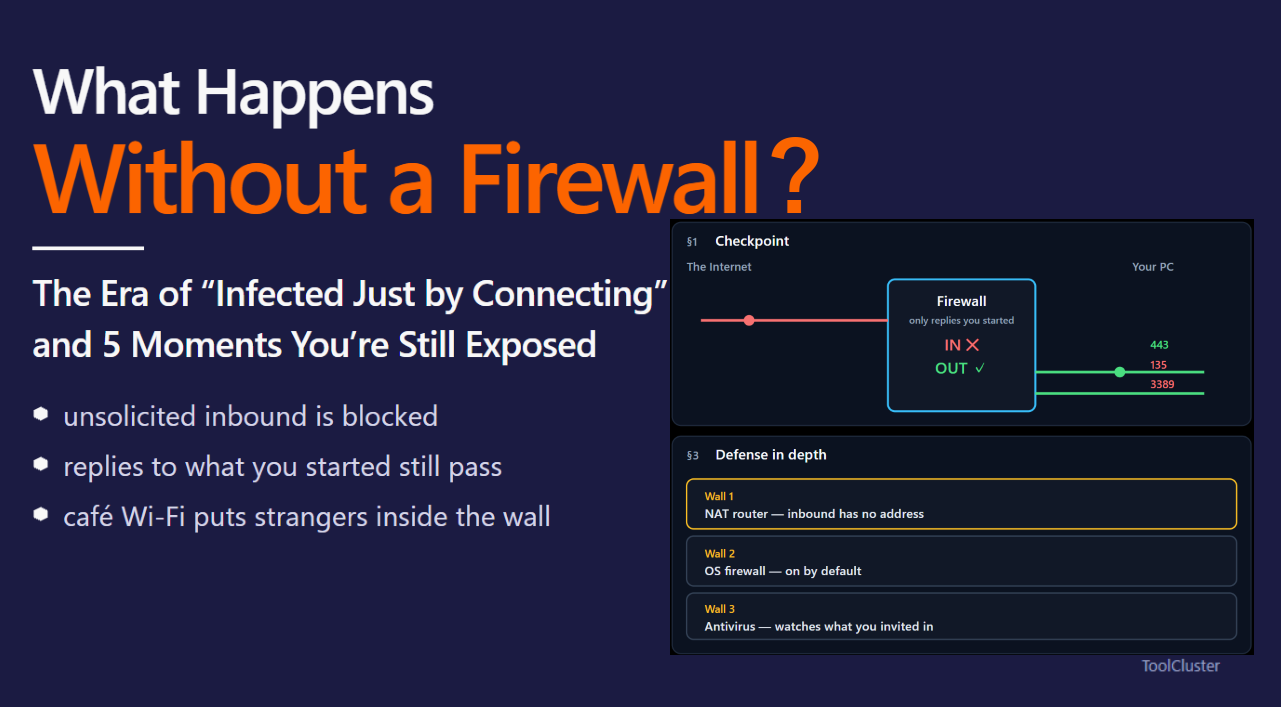
That said, a real firewall behaves less like a wall and more like a checkpoint. It stands between your PC and the internet, inspects every piece of traffic trying to pass, and checks it against a rulebook before deciding to let it through or turn it away.
- “The reply to a web page you asked for” → allowed through
- “A connection request that arrived out of nowhere, unrequested” → blocked
1-3. Inbound vs. outbound ── the distinction this whole article turns on
The checkpoint cares about direction, and this is the single most important distinction in this article:
- Inbound traffic (traffic coming toward your PC from outside): the direction a firewall watches most closely. Connection requests that arrive when you didn’t ask for anything are blocked by default
- Outbound traffic (traffic your PC sends out): opening a website, an app checking for updates, and so on. This is allowed by default ── and the replies coming back are also let through, as “the continuation of a conversation you started”
“Is it safe to open a website in my browser?” ── the question from the intro is mostly answered by this distinction alone. Opening a website is outbound. The checkpoint correctly passes the replies to conversations you started, while still stopping uninvited visitors.
1-4. Ports ── the numbered doors behind your address
In our IP address article, we described an IP address as your “address on the network.” It turns out there’s one more level of detail behind the address: ports (numbered doors, 0–65535, one for each service running on your PC).
The Internet
     │
     ▼
┌─[ Checkpoint = Firewall ]──────────────────────────┐
│ Rule: only admit replies to conversations          │
│       that you started                             │
└────────┬───────────────────────────────────────────┘
         ▼
   Your PC (address = IP address)
   ├─ Door 443  ── your browser's HTTPS traffic
   ├─ Door 3389 ── Remote Desktop (normally closed)
   └─ Door 135  ── internal Windows services (never needs exposure)
Here’s the part that matters: out of the box, your PC keeps several doors open and listening. File sharing, remote management, internal OS plumbing ── doors meant for your home or office network. So what happens if those doors are exposed directly to the internet? That’s exactly the question history answered for us, in §2.
2. The Era When “Infected Just by Connecting” Really Happened
2-1. Summer 2003: Windows PCs worldwide start rebooting on their own
In August 2003, a worm called Blaster (a worm is malware that spreads across networks entirely on its own) swept the globe. What made Blaster shocking, even by the standards of the time, was its method:
- No email, no attachments
- No user mistake, no click, no action of any kind required
- It fired exploit code directly at a door Windows left open on every internet-connected machine (the RPC service, port 135)
In other words, machines got infected just by being connected. Worse, every infected PC then joined the attacking side, spraying the same exploit at random IP addresses. The following year, 2004, a worm named Sasser ran the same playbook against a different door (port 445), with similar results.
2-2. When “survival time” was measured in minutes
Security researchers at the time tracked something called “survival time”: how long an unprotected Windows PC could sit directly connected to the internet before the first attack arrived. In studies from the mid-2000s, the answer was minutes to tens of minutes. Not because anyone was targeting you ── but because hordes of infected machines were mechanically sweeping through every IP address, so your turn always came up within minutes.
- 1Direct connectionAn unprotected PC is assigned a public IP address.
- 2The scan arrivesInfected machines sweeping all IP addresses reach yours within minutes.
- 3An open door is foundPorts 135/445 and other always-open doors are discovered.
- 4Exploit deliveredData crafted to abuse a flaw in the listening service is sent at the door.
- 5Infected and spreadingYour PC is taken over ── and starts sweeping the internet as an attacker.
2-3. Antivirus software couldn’t stop it
“Surely an antivirus would have saved you?” ── unfortunately, back then, it usually didn’t. The roles were different.
Antivirus software of that era was mainly a fire extinguisher inside the house: it examined files that arrived and programs that ran. But Blaster didn’t arrive as a file ── it came in as raw network traffic, straight at an open door. An indoor fire extinguisher can’t stop a firebomb thrown through a window. What was needed was a checkpoint standing in front of the doors: a firewall.
“Antivirus or firewall ── one of them is enough” is a misconception that dates back to this very era. They guard different places (§5 sorts this out).
2-4. The turning point ── Windows XP SP2 turns the firewall on by default
In response to the outbreaks, Microsoft made a landmark change in 2004’s major update, Windows XP Service Pack 2: the Windows Firewall, which had existed but shipped off by default, was switched on out of the box.
Unsolicited inbound traffic now got dropped without the user lifting a finger ── and that single change in defaults collapsed the business model of “infected just by connecting.” Ever since, on Windows and macOS alike, a firewall isn’t something you install. It’s something that’s already running.
3. Why You’re Safe Today ── Defense in Depth
Time to answer the worries from the intro. Your PC today is protected by what amounts to three walls.
The Internet
     │
     ▼
━━ Wall 1: Your NAT router ━━━━━━━━━━━━━━━━━━━━━
   Traffic that starts outside structurally can't get in
     │
     ▼
━━ Wall 2: The OS firewall ━━━━━━━━━━━━━━━━━━━━━
   Unsolicited inbound traffic is dropped (on by default)
     │
     ▼
   The apps on your PC
     ▲
━━ Wall 3: Antivirus software ━━━━━━━━━━━━━━━━━━
   Watches anything that made it past the walls as it runs
3-1. Wall 1: the NAT router ── an accidental fortress
Home internet almost always goes through a router. Routers rely on NAT (Network Address Translation ── the trick that lets every device in your home share one public IP address), and that turns out to be a powerful defense.
By the very way NAT works, a connection that starts from outside gives the router no way to know which device in your home it’s meant for ── so it’s simply dropped, address unknown. Only the replies to conversations started from inside can find their way back, guided by the router’s translation table. The NAT router was never designed as a security product, and yet it functions as a structural barrier against inbound traffic.
3-2. Wall 2: the OS firewall
As we saw in §2-4, both Windows (Windows Defender Firewall) and macOS ship with the firewall on. It blocks unsolicited inbound traffic that slipped past NAT ── and crucially, also traffic coming from inside the same network (inside the NAT wall). Keep that “from inside the same network” part in mind; it becomes important in §4.
3-3. Wall 3: antivirus software
When something passes the checkpoint legitimately ── a file you downloaded yourself, an email attachment ── and turns out to be malicious, the layer that stops it at the moment of execution is the antivirus. Windows ships with Microsoft Defender built in and running by default.
3-4. So yes ── opening the activation site is safe
Let’s answer the intro head-on. Opening your antivirus vendor’s activation page on a brand-new PC is:
- Outbound traffic (a conversation you started ── §1-3), so the checkpoint correctly admits the replies
- Happening while the NAT router (Wall 1) and the OS firewall (Wall 2) are already active, straight from the factory
- And on Windows, Microsoft Defender (Wall 3) is running from the first boot as well
In short: even before you install a third-party security suite, you are not defenseless. The genuinely dangerous version of this scene was 2003, when port 135 sat exposed to the internet with no Wall 1 and no Wall 2. A freshly reinstalled OS downloading updates is covered by the same logic ── modern systems have the firewall up from the moment installation finishes, so the defenses are standing while updates download.
“Essentially safe” is not “safe no matter what.” The walls guard inbound. Voluntarily walking out to a shady website ── outbound ── calls for a different kind of protection (§5).
4. The 5 Moments Your Defenses Disappear
Now for the heart of the matter. The three walls can each vanish under specific circumstances. Let’s map which wall disappears in each scenario, using the model from §3.
| # | Scenario | Which wall disappears | Risk |
|---|---|---|---|
| 1 | Public Wi-Fi at cafés and hotels | Strangers join you inside Wall 1 | Medium |
| 2 | PC plugged straight into the modem | Wall 1 doesn’t exist | High |
| 3 | Running a VPS / cloud server | No Wall 1, plus doors opened on purpose | High |
| 4 | Port forwarding / DMZ / UPnP | Holes drilled through Wall 1 by you | Medium–High |
| 5 | Firewall disabled “temporarily” and forgotten | Wall 2 stays down | Medium |
4-1. Public Wi-Fi ── strangers inside the wall
Join the Wi-Fi at a coffee shop or hotel and your laptop now shares a LAN (the network inside the router) with complete strangers. The NAT router blocks traffic from “outside” ── but traffic between devices on the same inside network isn’t “outside.” Wall 1 does nothing about the person at the next table.
This is where Wall 2 ── the OS firewall ── earns its keep. It’s exactly why Windows asks “Do you want to treat this network as public?” when you connect somewhere new.
On public Wi-Fi, always set the network profile to “Public.” Windows closes the file-sharing doors and switches to its strictest inbound rules.
4-2. Straight into the modem ── no walls at all, 2003 reenacted
Right after moving house ── or while troubleshooting ── you might bypass the router and plug your PC directly into the bare modem. Your PC now holds a public IP address with nothing in front of it. Structurally, that puts you on the same field as 2003’s “infected just by connecting.”
The good news is that Wall 2, the OS firewall, is up by default these days, so instant infection isn’t the expected outcome anymore. Still, you’re standing in the direct line of fire if the OS or any listening service has an unknown flaw. Simply putting the router back in between restores Wall 1, so direct-to-modem setups are best kept brief.
4-3. VPS and cloud servers ── the world’s bots arrive in minutes
Rent a VPS (virtual private server) to host a website, and the picture changes: there’s no NAT wall, and since you’re publishing to the world, you open doors (80/443) on purpose.
And here’s a reality worth knowing in advance ── a public IP address starts receiving indiscriminate scans on day one, and they never stop. The typical pattern looks like this:
(Hypothetical example: typical unsolicited traffic
 hitting a freshly published server)

 Immediately   connection attempts on port 22 (SSH), several foreign IPs
 Minutes in    connection attempts on port 23 (Telnet)
 Within hours  login attempts as admin / root begin, on and off
 Hours later   connection attempts on port 3389 (Remote Desktop)
 Forever       hundreds to thousands of attempts per day, indefinitely
The “survival time” story from §2 isn’t ancient history ── in the world of public servers, it’s still daily life. Once again, nobody is targeting you personally; bots that mechanically sweep the entire IP address space simply run 24/7. That’s why the iron rule on a VPS is to use your cloud provider’s firewall (security groups) and the OS firewall to close every door except the ones you’re deliberately publishing (more in §6).
4-4. Port forwarding, DMZ, UPnP ── holes you drill yourself
Hosting a game server, or reaching your home NAS from outside, sometimes requires port forwarding ── drilling a hole through Wall 1 so one specific door is reachable from the internet.
The hole itself isn’t evil. The catch is that the safety of an opened door now depends entirely on the quality of the software answering it. An old NAS firmware, a game server that stopped getting updates ── if what’s behind the hole is vulnerable, you’ve rebuilt §2’s “port 135” with your own hands.
- DMZ mode (forwarding every door to one device) isn’t a hole ── it’s demolishing the wall. Avoid it as a rule
- UPnP (a mechanism that lets apps request port openings automatically) is convenient, but it means software in your house can drill holes without asking you. Check your router’s admin page now and then for openings you don’t recognize
4-5. “Temporarily disabled” ── and never re-enabled
When networking misbehaves, “turn off the firewall for a moment” is a classic troubleshooting step. The danger isn’t the step itself ── it’s going back to daily life with the firewall still off. Walk into a coffee shop’s public Wi-Fi (scenario 4-1) days later with Wall 2 down, and you’ve assembled the worst combination: strangers inside the wall, and the checkpoint closed for business. The fix is simple discipline: the moment the troubleshooting is done, switch it back on.
5. What a Firewall Doesn’t Protect ── Whatever You Invite In
We’ve covered what a firewall defends. Knowing what it can’t defend is every bit as important ── and the checkpoint’s blind spot is remarkably consistent: it never suspects anything you invited in yourself.
- Phishing sites and scam emails: opening the fake site is your own outbound traffic. The checkpoint waves it through
- Malware you downloaded and ran yourself: it passes through legitimately, as an “invited guest.” Stopping it is Wall 3’s job ── the antivirus
- Exploits against your browser or apps: malicious data arrives through a door you opened (443, say), disguised as a legitimate reply. The defense here is software updates
| Threat | Firewall | Antivirus | Software updates |
|---|---|---|---|
| Direct attack on an open door (Blaster-style) | ✓ Blocks | △ Limited | ✓ Seals the flaw itself |
| Connection attempts from the same Wi-Fi | ✓ Blocks | △ Limited | ✓ Seals the flaw itself |
| Running downloaded malware | ✗ No | ✓ Blocks | △ Indirect |
| Phishing scams | ✗ No | △ Warnings at best | ✗ No |
| Malicious sites exploiting browser flaws | ✗ No | △ Limited | ✓ Blocks |
The conclusion the table points to is simple. Firewall (entrance control) + software updates (sealing flaws in the doors themselves) + antivirus (indoor monitoring) + you (not inviting trouble in) ── no single layer covers everything, and each guards a place the others can’t. That’s the idea behind “defense in depth.” Habits like never reusing passwords belong to that same “human layer” (see our guide to passwords, hashes, and tokens).
6. Home, Corporate, and Cloud Firewalls ── What’s Different
“Firewall” is one word covering several things that stand in different places and guard different scopes.
| Type | Where it stands | Main job |
|---|---|---|
| Personal firewall | Inside your PC (built into the OS) | Per-app control of inbound/outbound traffic |
| Router NAT/SPI | At your home’s internet entrance | Structurally blocks inbound for the whole household |
| Corporate perimeter firewall / UTM | At the office network’s border | Company-wide policy in both directions, logging and monitoring |
| Cloud security groups | In the cloud provider’s infrastructure | Restricts doors before traffic even reaches your server |
- The personal firewall (Wall 2 from §3-2) shines at per-app granularity: “allow this app to communicate, deny that one”
- A corporate perimeter firewall differs from home setups mainly in that it polices outbound too ── checking whether office PCs are quietly shipping data off to strange servers on the way out. When the office is slow for reasons on the DNS, broadcast, or address-exhaustion side rather than a hole in the perimeter, that map is in Why Is the Office Network So Slow?
- Cloud security groups are the wall VPS users configure themselves. The standard practice is to double up with an OS-level tool such as
ufw(a command that simplifies Linux firewall configuration): “close everything except SSH and HTTPS” (for the server side of this story, see our Python security patterns guide)
One more name you’ll meet: the WAF (Web Application Firewall), a checkpoint specialized for websites. It inspects the content of traffic for attack patterns aimed at web applications ── similar name, but it guards a different layer than the firewalls in this article.
7. Check Your Own Defenses in 3 Minutes
Let’s finish by turning all of the above into a quick inspection of your own setup.
7-1. Windows ── confirm the firewall is up
Settings → Privacy & security → Windows Security → Firewall & network protection: every network should show as “on.” You can also check from the command line:
netsh advfirewall show allprofiles | findstr StateIf all three profiles (Domain / Private / Public) say ON, you’re in good shape. This is also where you’d catch §4-5’s “forgot to re-enable.”
7-2. macOS
System Settings → Network → Firewall: confirm it’s enabled. Per-app inbound permissions can be reviewed on the same screen.
7-3. Linux
sudo ufw status verboseConfirm Status: active, and that the open ports are exactly the ones you intend.
7-4. Your router’s admin page ── audit the holes
Three things to review in the router’s admin interface:
- Port forwarding rules: anything you don’t recognize?
- DMZ: confirm it’s disabled
- Ports auto-opened via UPnP: any apps squatting there that you don’t know?
7-5. See yourself from the outside
Port-check services (a quick search will turn up several) show you how your doors look from the internet’s side. If everything reports “closed” or “stealth,” the walls from §3 are doing their job.
Only ever port-scan your own connection. Scanning someone else’s server ── or your employer’s ── without permission can be treated as the prelude to an attack.
Summary ── The 4-Line Essence
- A firewall is a checkpoint that blocks traffic starting from outside. It guards a different place than antivirus software, which watches files indoors
- In 2003, “connected for minutes = infected” was reality. Windows XP SP2 (2004) turned the firewall on by default, and the era ended
- A modern home runs defense in depth: NAT router + OS firewall + antivirus. Opening a browser on a brand-new PC does not make you defenseless
- Danger lives where walls disappear ── public Wi-Fi, direct modem connections, public servers, port forwarding, and firewalls left disabled. Know which wall is gone, and the countermeasure is rarely complicated
For the address system itself, see What Is an IP Address? ── and for how names map onto those addresses, What Is DNS?. Together they complete the picture of what’s happening between your PC and the internet.
FAQ
Q1. Is it dangerous to open the activation website before my antivirus is installed?
A. Today, it’s essentially safe. Opening a website is outbound traffic ── a conversation you started ── and the firewall correctly admits the replies. Meanwhile the NAT router, the OS firewall, and (on Windows) Microsoft Defender are all active from the moment you power on. What deserves your attention isn’t the direction of the traffic but the destination: make sure it’s the vendor’s genuine site, and don’t get steered to a fake by an ad slot in the search results.
Q2. Is the built-in Windows firewall enough, or do I need a third-party one?
A. For inbound defense ── the core job ── the built-in firewall is enough: on by default, automatically updated, with per-app control. What third-party suites add lives in other layers: outbound visibility (which app is talking to which server), phishing protection, and so on. At the very least, you don’t need to buy one because “the built-in firewall has holes.” It doesn’t.
Q3. If I have a firewall, can I skip antivirus software?
A. No. As the table in §5 shows, a firewall can’t stop what you invite in yourself ── downloaded files, email attachments, phishing. That’s the antivirus layer’s territory, and the reverse is just as true: they’re a division of labor, not substitutes. Note that Windows ships with Microsoft Defender built in, so “didn’t buy anything” doesn’t mean “unprotected.”
Q4. My phone doesn’t seem to have a firewall. Is that okay?
A. Phones take a different design approach. iOS and Android run every app in a sandbox (an isolated box per app), and they barely open any doors that listen for outside connections in the first place. On top of that, mobile carriers route you through their own NAT, so there’s hardly a path for the internet to reach your phone directly. It’s not that the checkpoint is missing ── the building was designed with almost no doors to guard. On public Wi-Fi, the same caution applies as with a PC.
Q5. Is port forwarding for online games dangerous?
A. Done as “open the minimum, keep the software behind it updated,” it’s a managed risk. What turns it dangerous is reaching for DMZ mode (which forwards everything), forgetting the opening exists and leaving it for years, or parking an outdated device or server behind the hole. If you rely on UPnP, check your router’s admin page from time to time and review the list of auto-opened ports.
Leave a Reply